
This guide is for anybody who has not signed in yet: a parent looking at the club for the first time, a member who has lost their password, or somebody the club has sent a bill to. It covers the club's public website and everything you can do on it without an account, and how to get an account when you need one.
The club's website
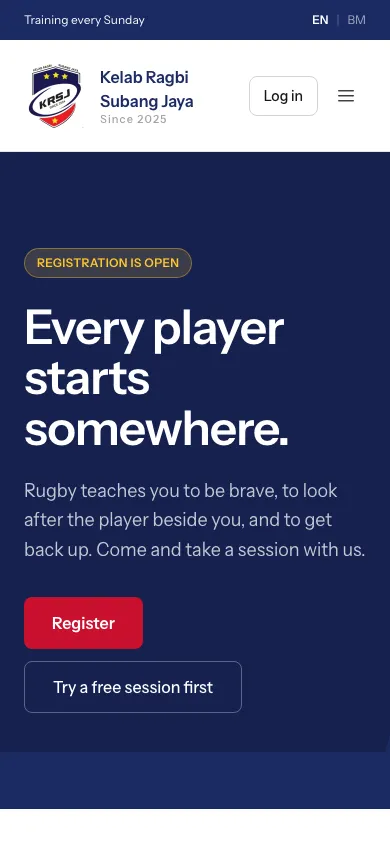
The front page says what the club is, when it trains, and what to do next.
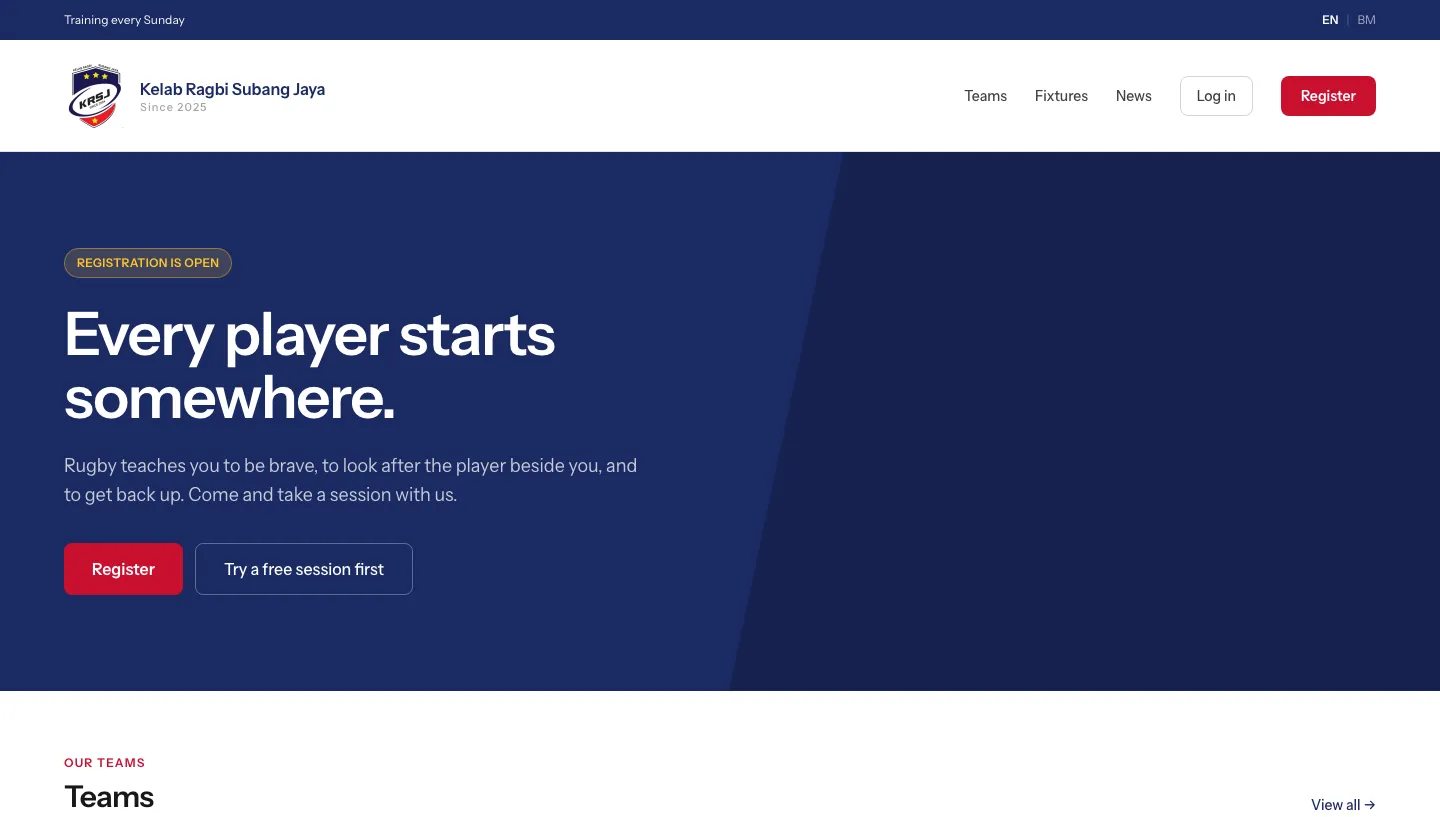
- Register starts signing a child up to play.
- Try a free session first books one Sunday session, with nothing to pay.
- Log in, at the top right, is for people who already have an account.
- EN | BM at the very top switches the whole site between English and Bahasa Melayu. Your choice is remembered.
News
News is what the club has been up to: results, announcements and what is coming up.
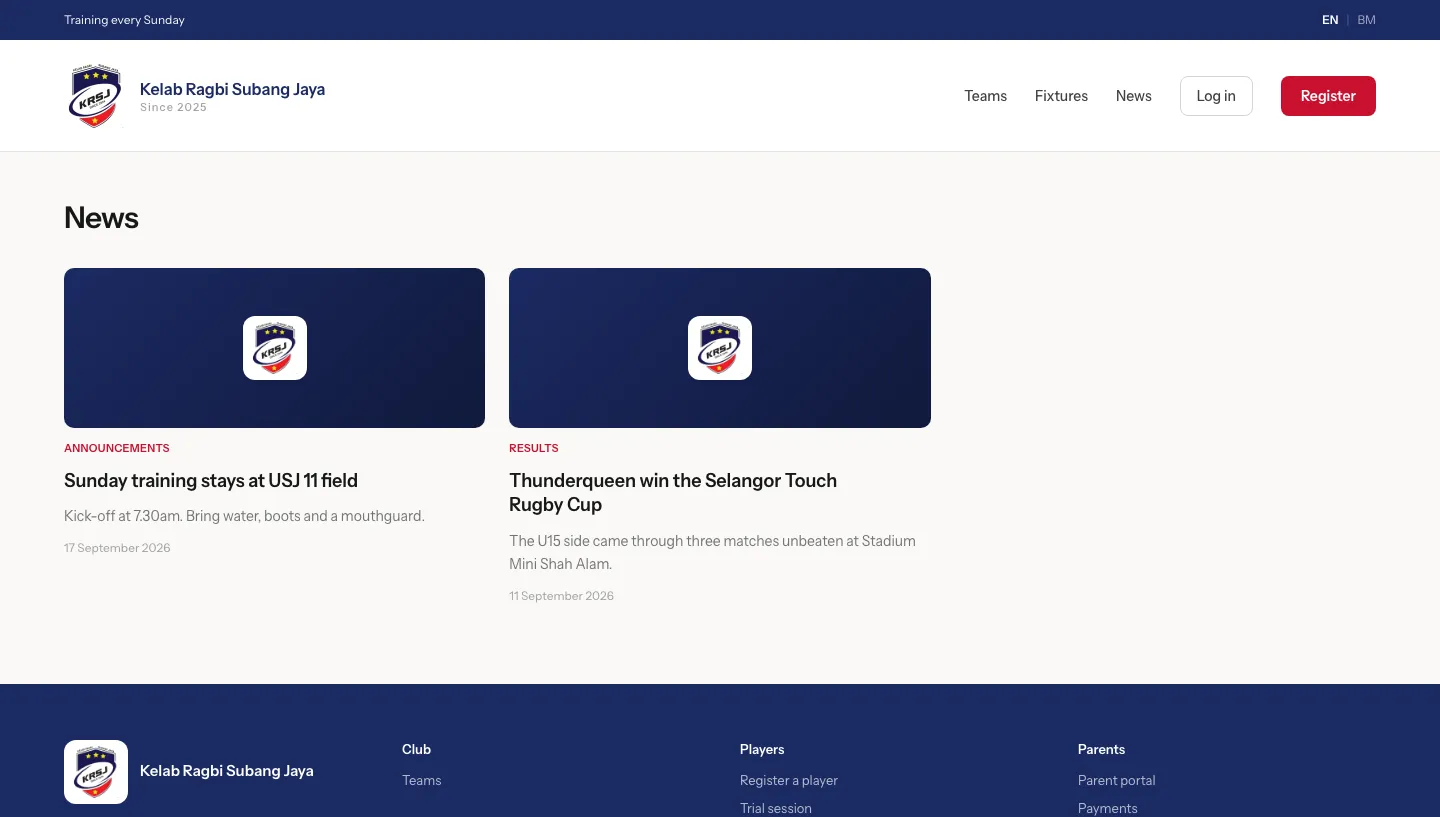
Click a headline to read the whole item.
Teams
Teams lists the club's teams, what each one plays, and when and where it trains.
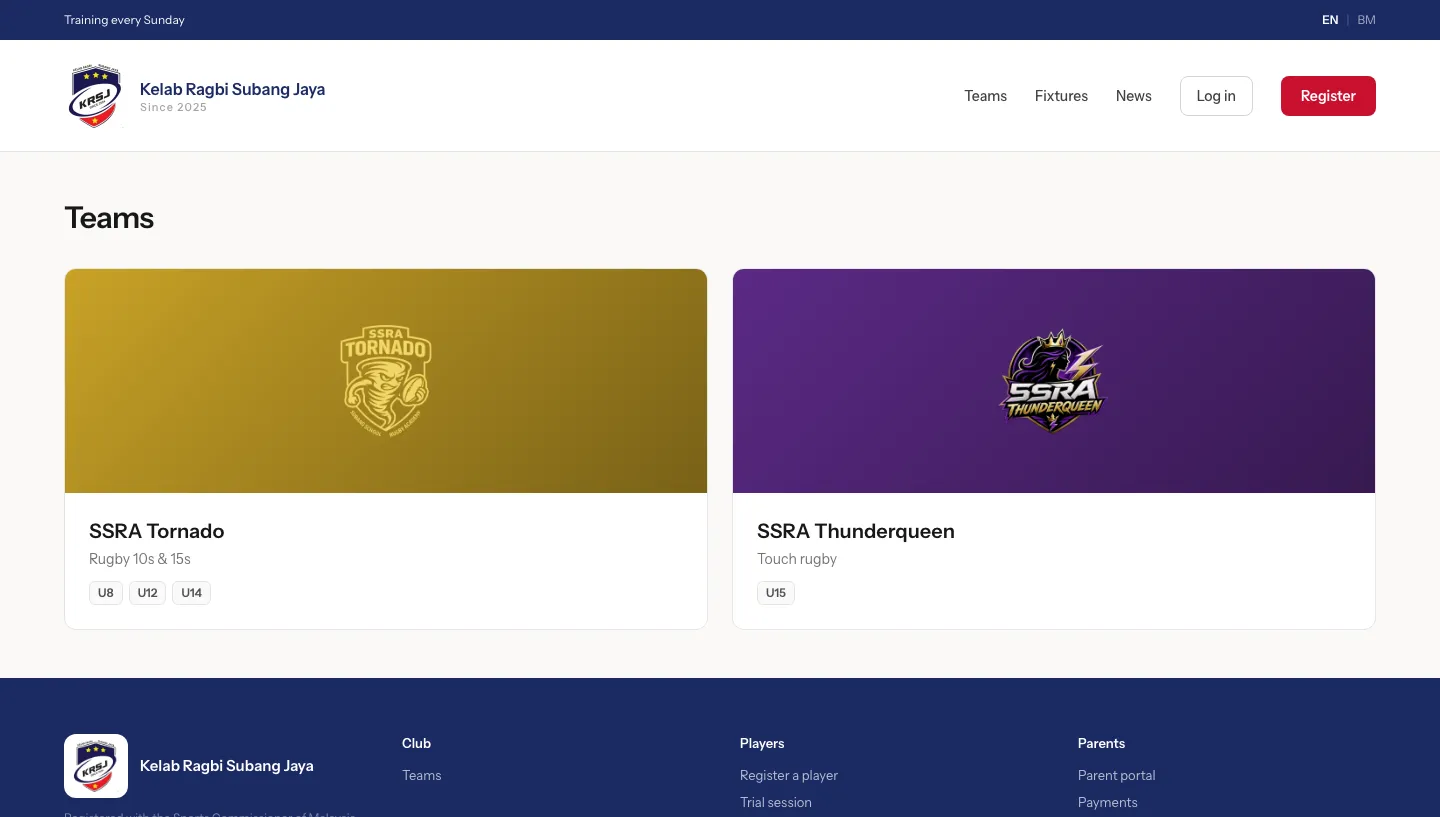
Click a team for its own page: the sides it fields and up to what age, when and where it trains, and its results.
Fixtures and results
Fixtures shows every tournament and match, what is coming up and what has been played.
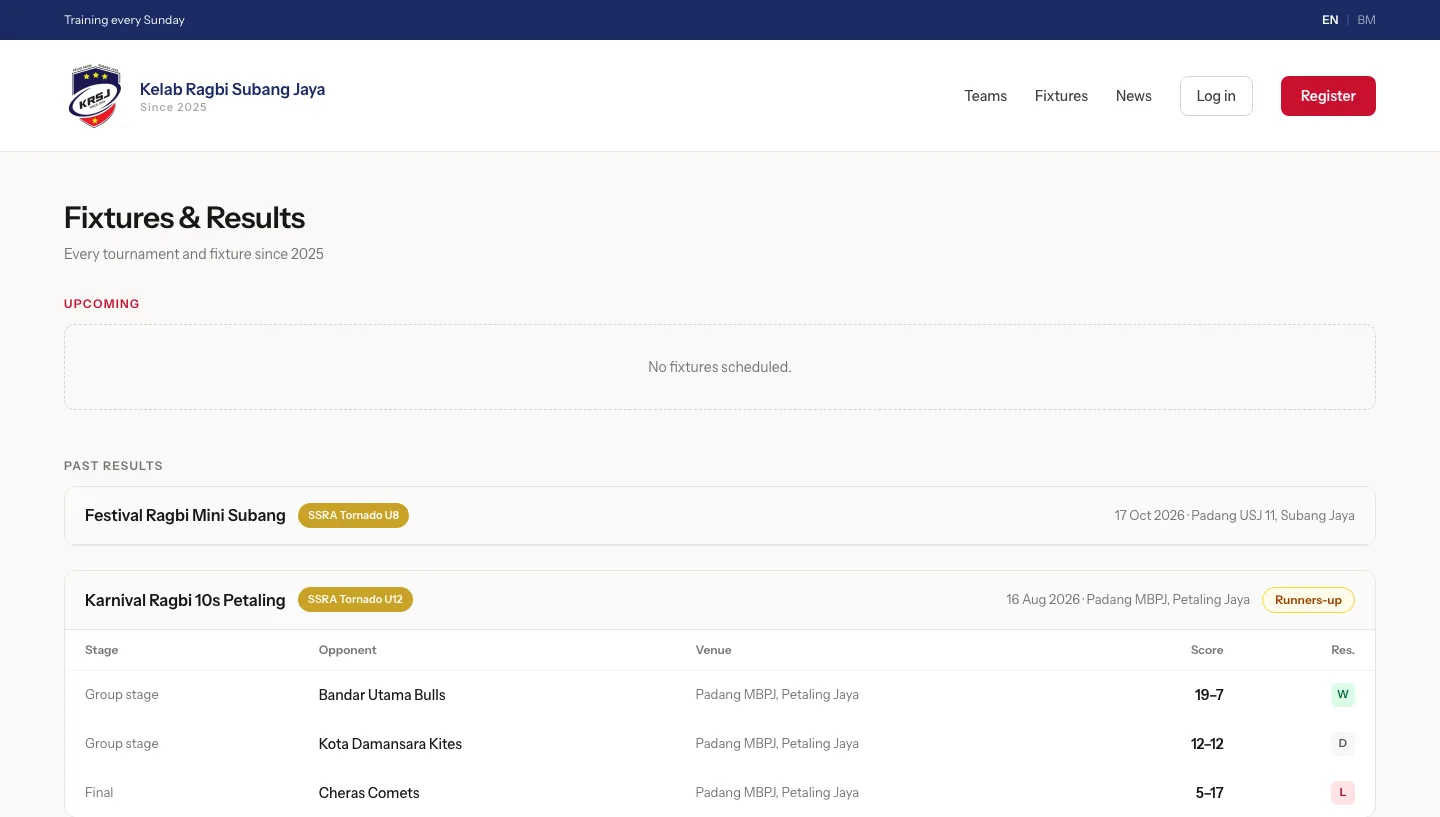
Each match shows the score and how it went: W for a win, D for a draw, L for a loss. In Bahasa Melayu those read M, S and K.
Try a session first
Try a free session first books one Sunday session. There is nothing to pay and nothing to sign.
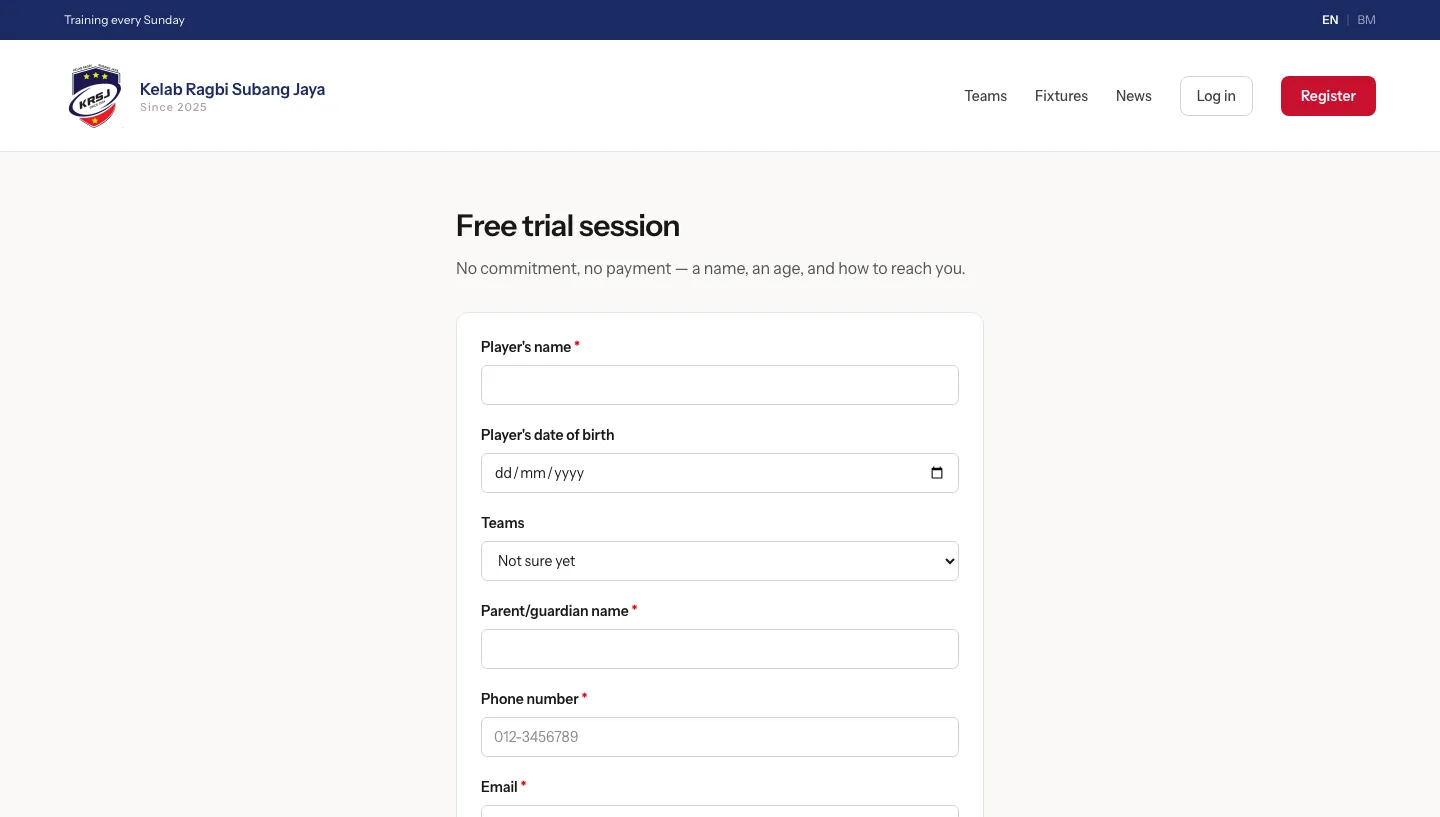
- Give the player's name and date of birth.
- Choose a team, or leave it at Not sure yet and the club will place them.
- Give the parent or guardian's name, a phone number and an email. The club writes back with the date, where to come and what to bring.
- Choose a preferred trial date. The club trains on Sunday.
- Press Book a trial session.
Somebody from the club then contacts you. Registering comes later, and only if you want to.
What it costs, and registering
Register opens the page that sets out the fees before you fill anything in.
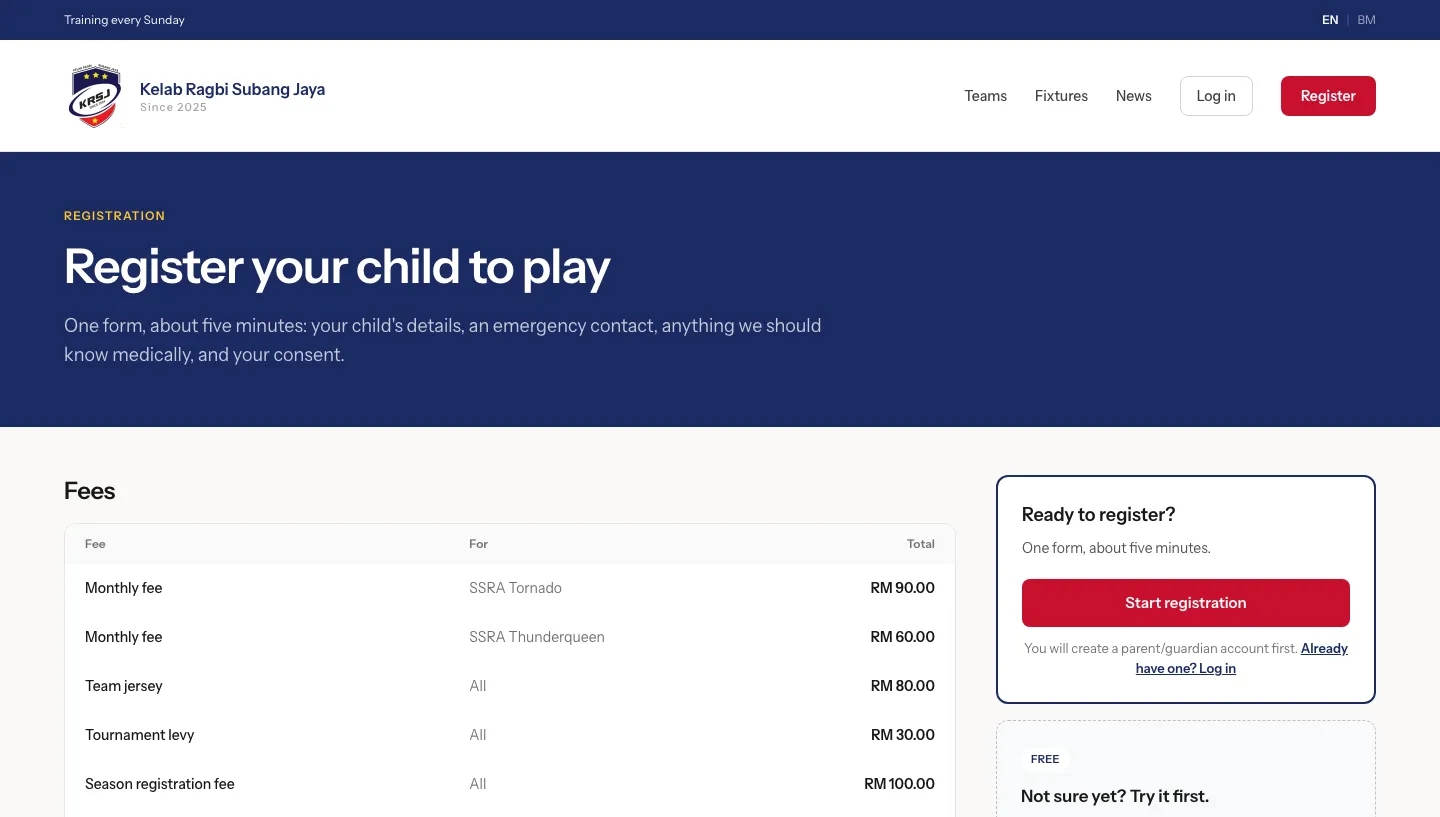
- The fees table lists the monthly fee for each team, the jersey, the tournament levy and the season registration fee, and what it costs a parent to become a member of the club.
- Start registration begins the form. It takes about five minutes: your child's details, an emergency contact, anything the coaches should know medically, and your consent.
- You create a parent or guardian account first. If you already have one, Log in instead and register from inside the portal.
Creating an account
Create an account is where a parent, guardian or member gets their own login.
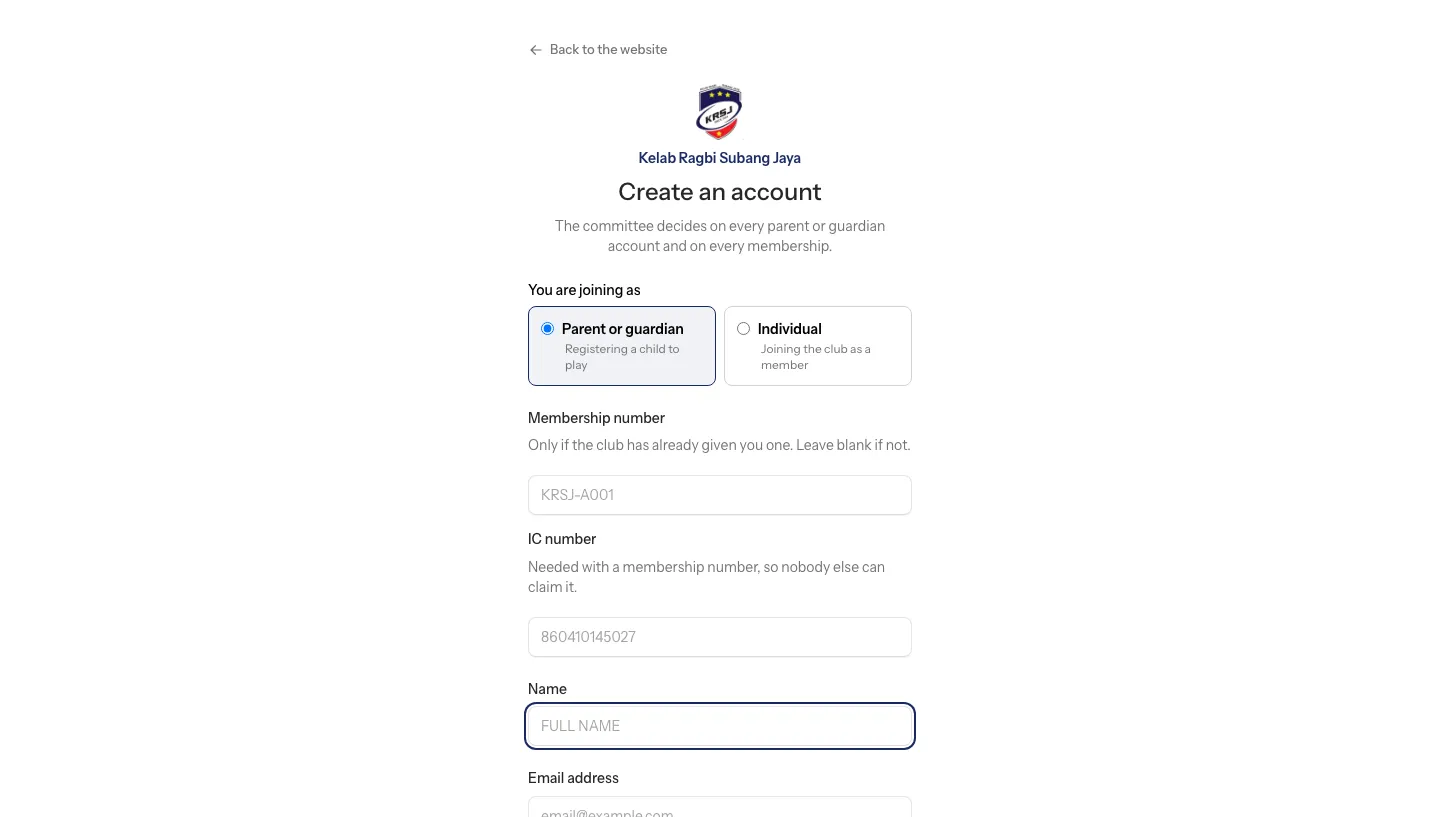
- Under You are joining as, choose Parent or guardian to register a child, or Individual to join the club as a member in your own right.
- Leave Membership number blank unless the club has already given you one. If you have one, give your IC number with it, so that nobody else can claim your membership.
- Give your name, email address, mobile number (the club sends fee and training reminders to it on WhatsApp) and a password, twice.
- Press Create account.
Your account opens straight away, and you are signed in. A parent then adds their child from their own page.
Signing in
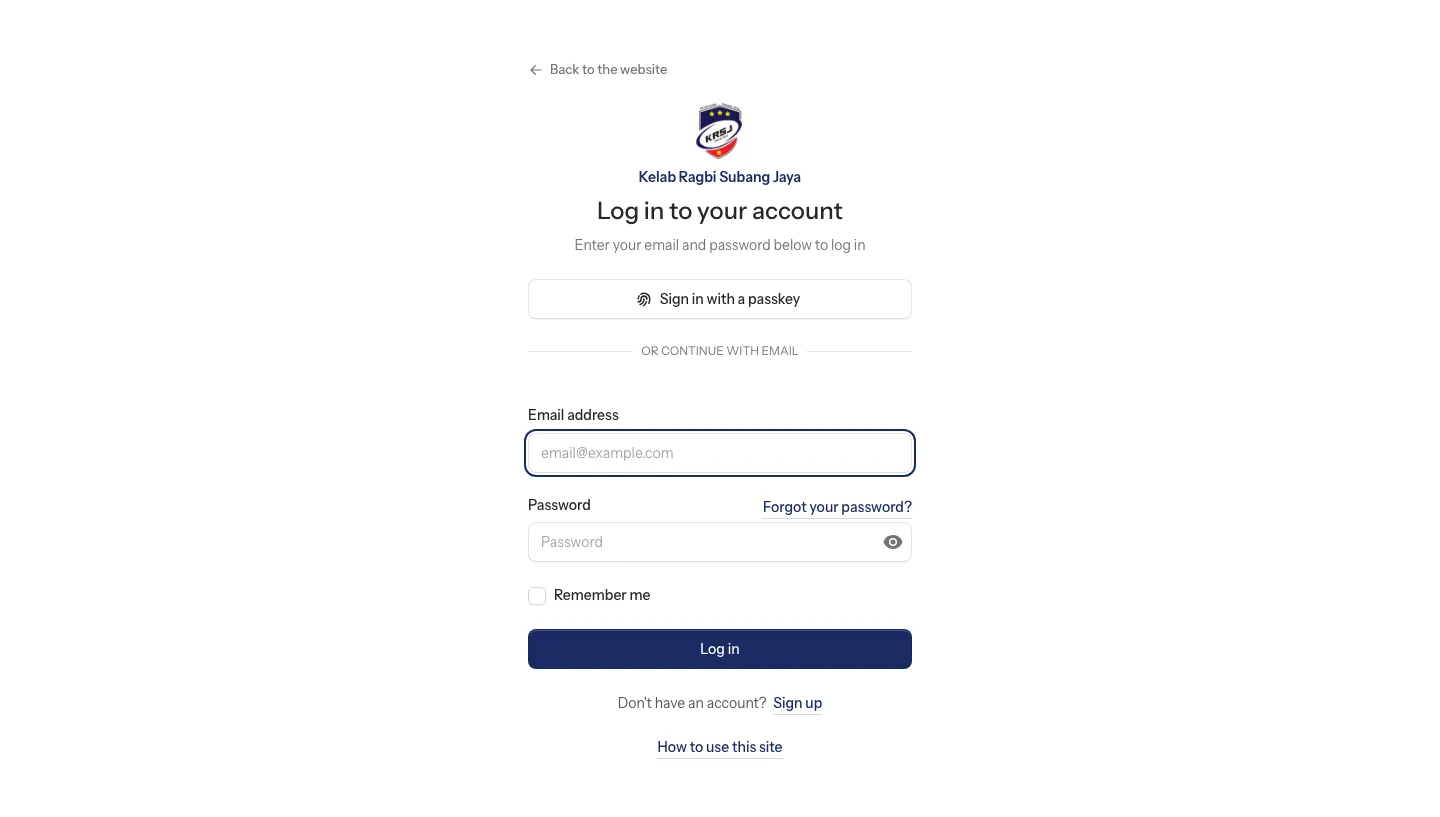
- Enter your email address and password, and press Log in.
- Remember me keeps you signed in on your own phone or computer. Leave it unticked on a shared one.
- Sign in with a passkey uses the fingerprint, face or screen lock your device already has, instead of a password. It only works once you have added a passkey to your account, which you do after signing in: Profile → Security → Add passkey, on the device you want to use.
If you forget your password
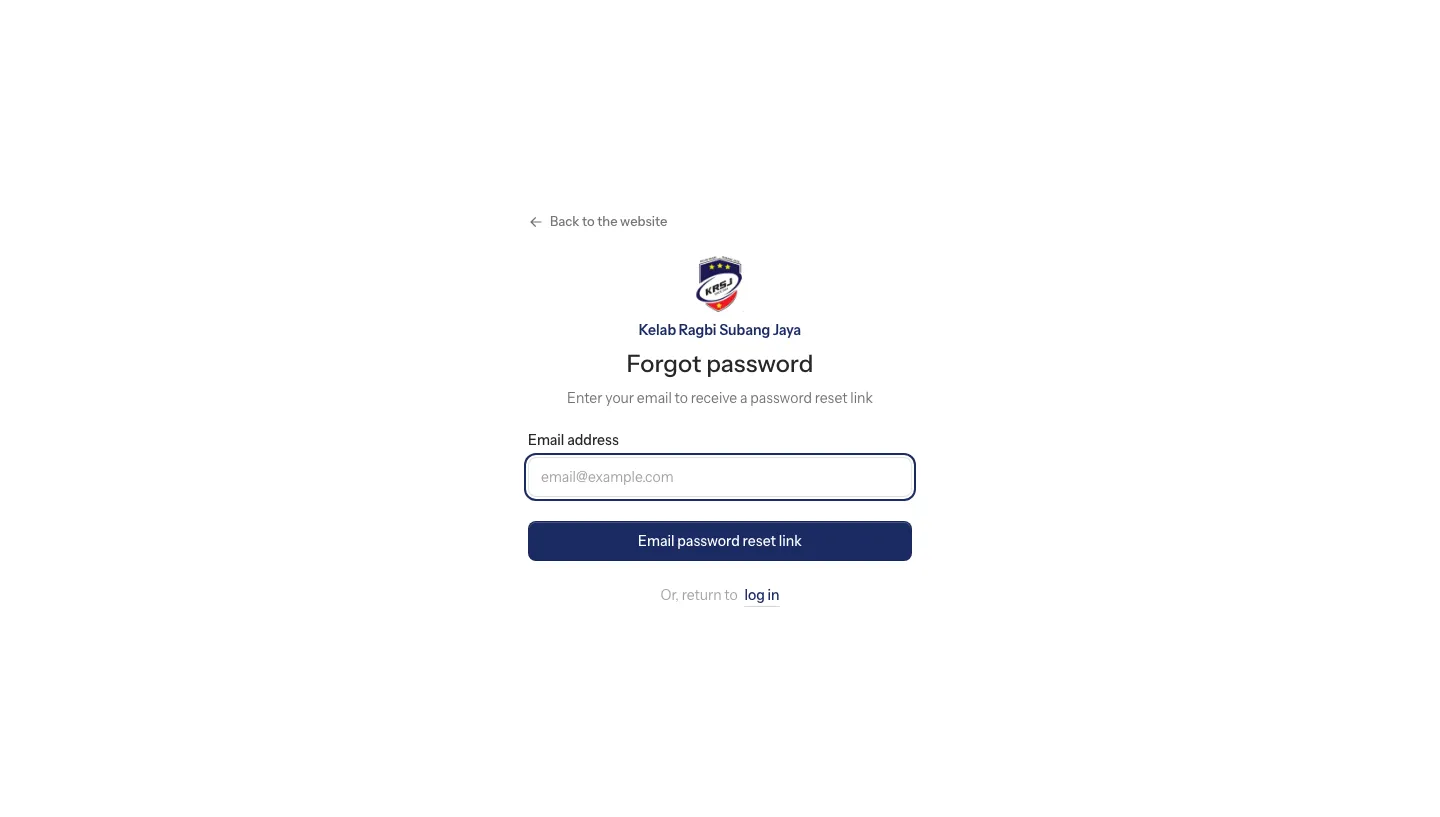
- Press Forgot your password? on the sign-in page.
- Type the email address the club holds for you and press Email password reset link.
- Open the email and follow the link. It stops working after a while, so ask for a new one if it has gone stale.
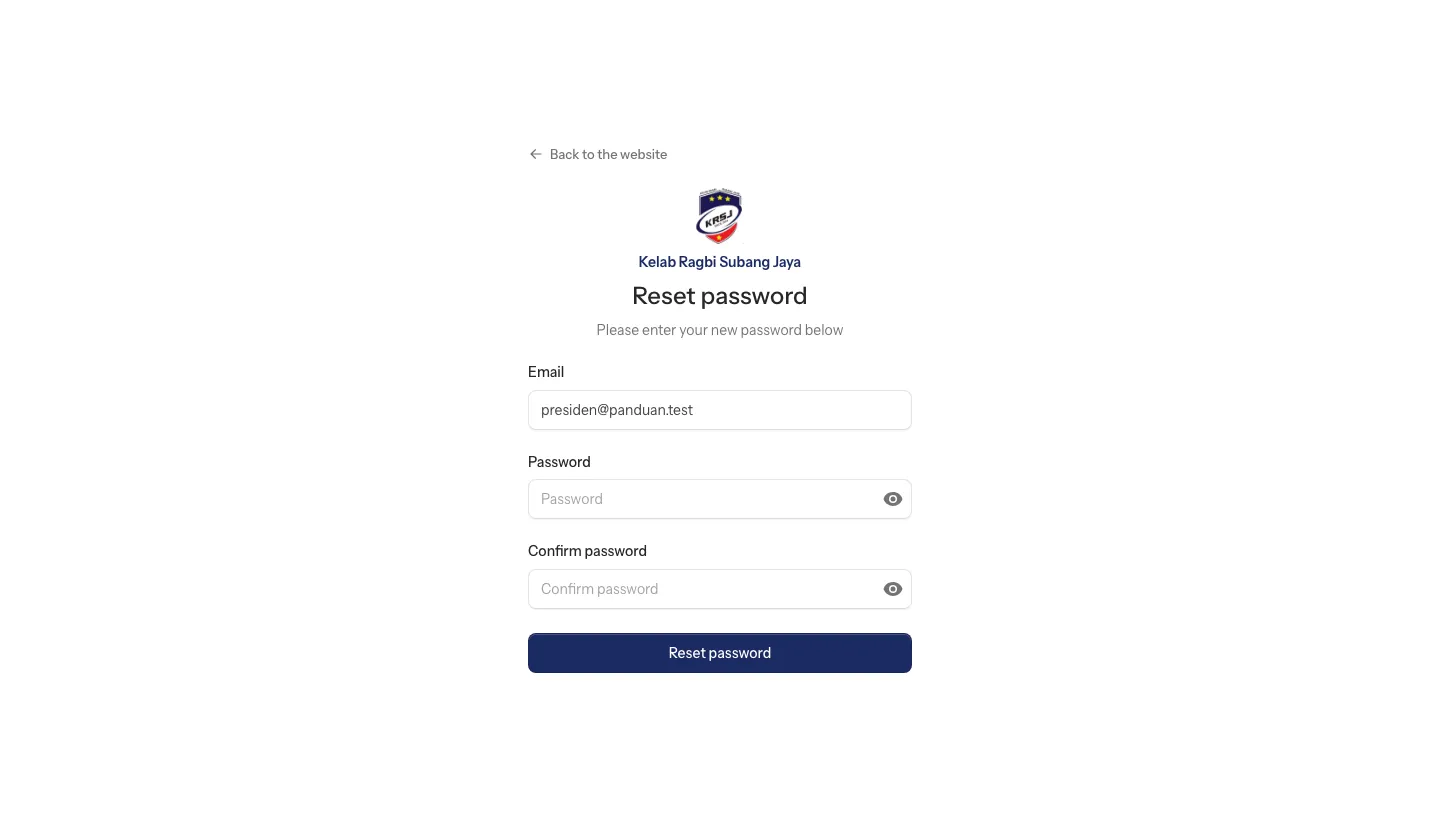
Type your new password twice and press Reset password. You are signed in straight away.
If no email arrives, check the spam folder first, then ask the club: the address the club holds for you may not be the one you tried.
Paying an invoice the club sent you
If the club has billed you and you have no account — a sponsor, a hall owner, a visiting club — the invoice arrives by email with a link. The link opens the invoice itself; nothing else on it is reachable from there.
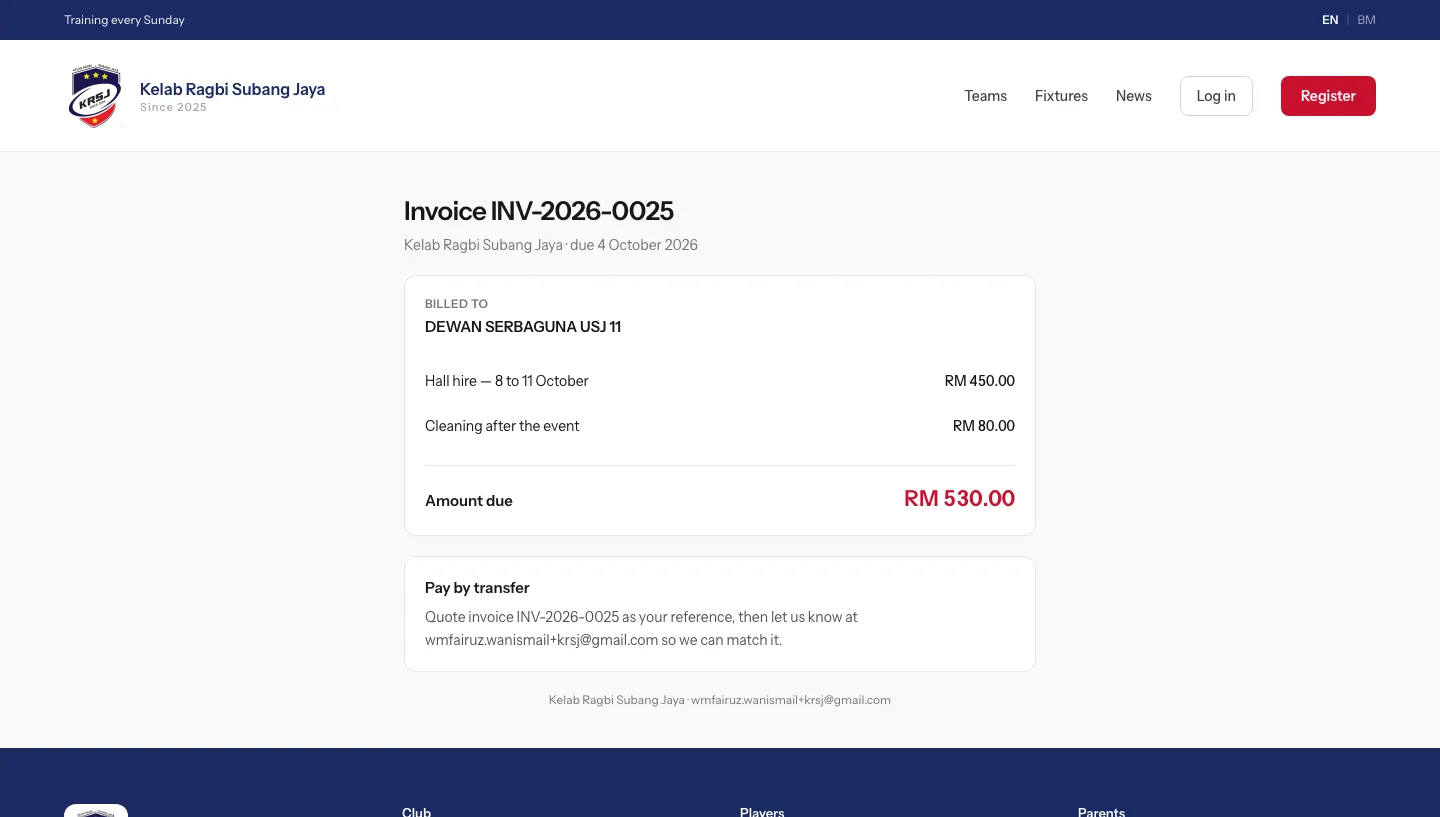
- The page shows what was charged, what it is for, and the amount due.
- Pay by transfer gives the club's bank details. Quote the invoice number as your reference, and tell the club so they can match it.
- Where the club's online payment is switched on, the page also offers to pay from your own bank account, and the receipt is issued as soon as the bank confirms it.
Giving to something the club is raising money for
An appeal has its own link, which anybody can open without an account.
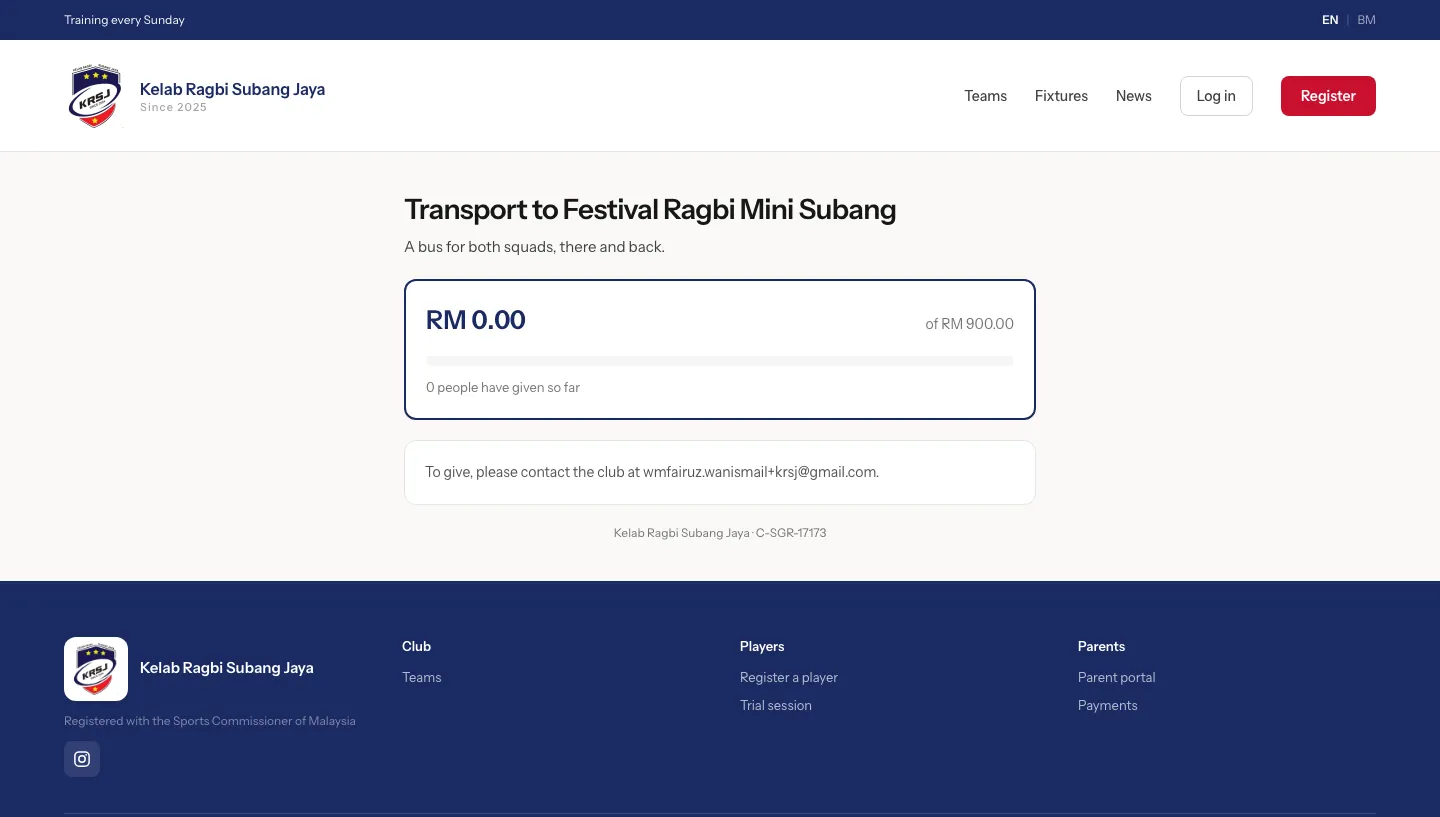
It shows what the money is for, how much is needed and how much has come in so far. Give online where that is offered, or contact the club to hand over cash and have it receipted.
On your phone
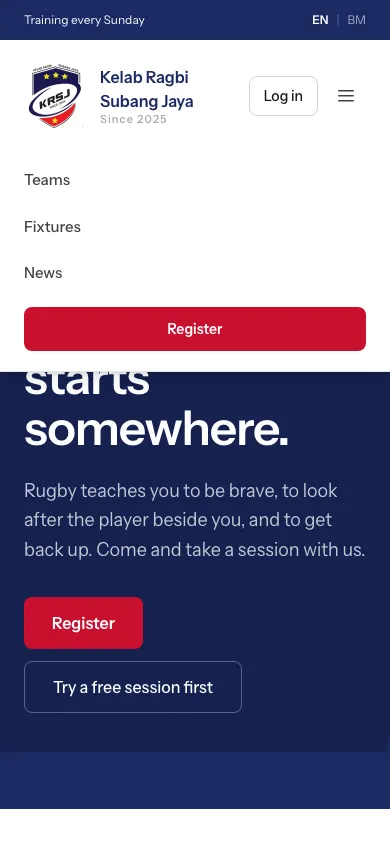
The site fits your phone's screen. Tap ☰ at the top right to open the menu, and tap it again to close it.
Getting help
- Nothing here needs an account except the portal itself. If a page asks you to sign in and you cannot, use Forgot your password? before making a second account: a second account will not be linked to your children.
- Anything else — a fee you do not recognise, a name spelled wrong, a child in the wrong team — speak to the committee at training, or reply to any email the club has sent you.